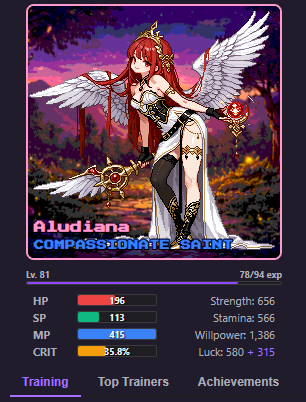
What is BitBuff?
BitBuff transforms your Twitch stream into an interactive IRL "workout" RPG where viewers can choose from over 100 serious, restful, and hilarious forms of training.
Will you grab your cat and carry it around for "strength training"? Or how about a quick "caffeinate" session for "willpower training"? Maybe 10 consecutive squats trainings for a HUGE strength boost and a Clip to preserve the memory of your struggle on stream? The choice isn't yours--you'll be at chat's mercy, so enable and disable your training options carefully!

Interactive Workouts
Viewers add training to your queue to complete on stream. With over 100 different activities, your content will be fresh and unpredictable. Viewers help unlock achievements and level YOU up.
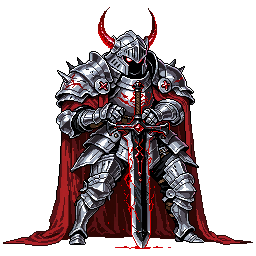
RPG Progression
Experience and levels advance as you train. Gain stats to work toward jobs and titles. Progress from Novice to legendary classes--and switch classes as your stats change. Your path is up to your viewers!
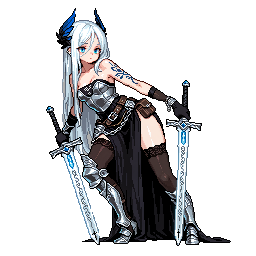
Community Engagement
Leaderboards track top trainers, achievements reward milestones, and alerts celebrate training with RPG-style animations. It's gamified activity that's fun, engaging, and perfect for any flavor of streamer.
Ready to Transform Your Stream?
BitBuff is available on the Twitch Extension Store. Find it by searching for "BitBuff" or visit your channel's Extensions Manager.
Find BitBuff on Twitch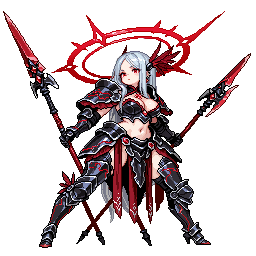
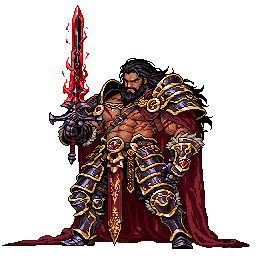
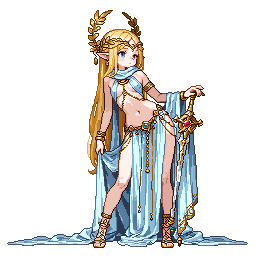
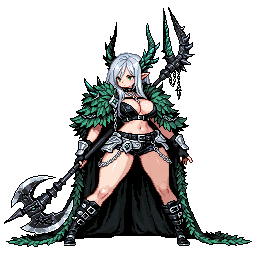
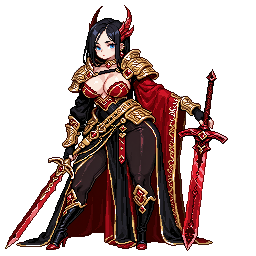
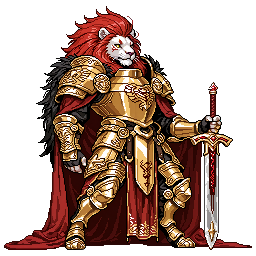
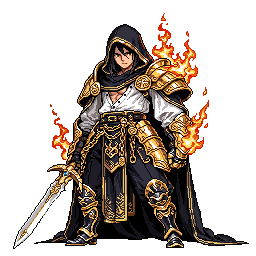
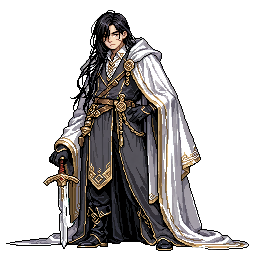
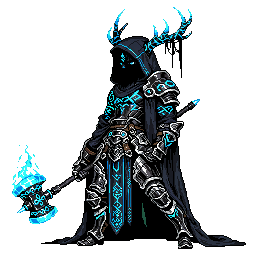
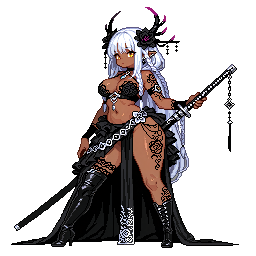
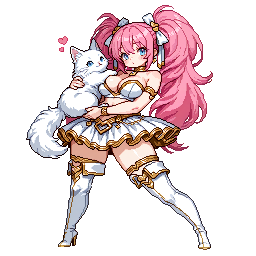
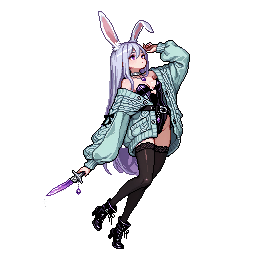
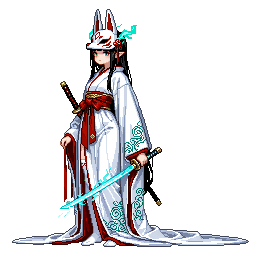
Customize Your Character
Choose from over 200 avatars to represent your journey. Your avatar appears in the channel panel and OBS browser source alerts, making your training uniquely yours.


Mobile/Channel View
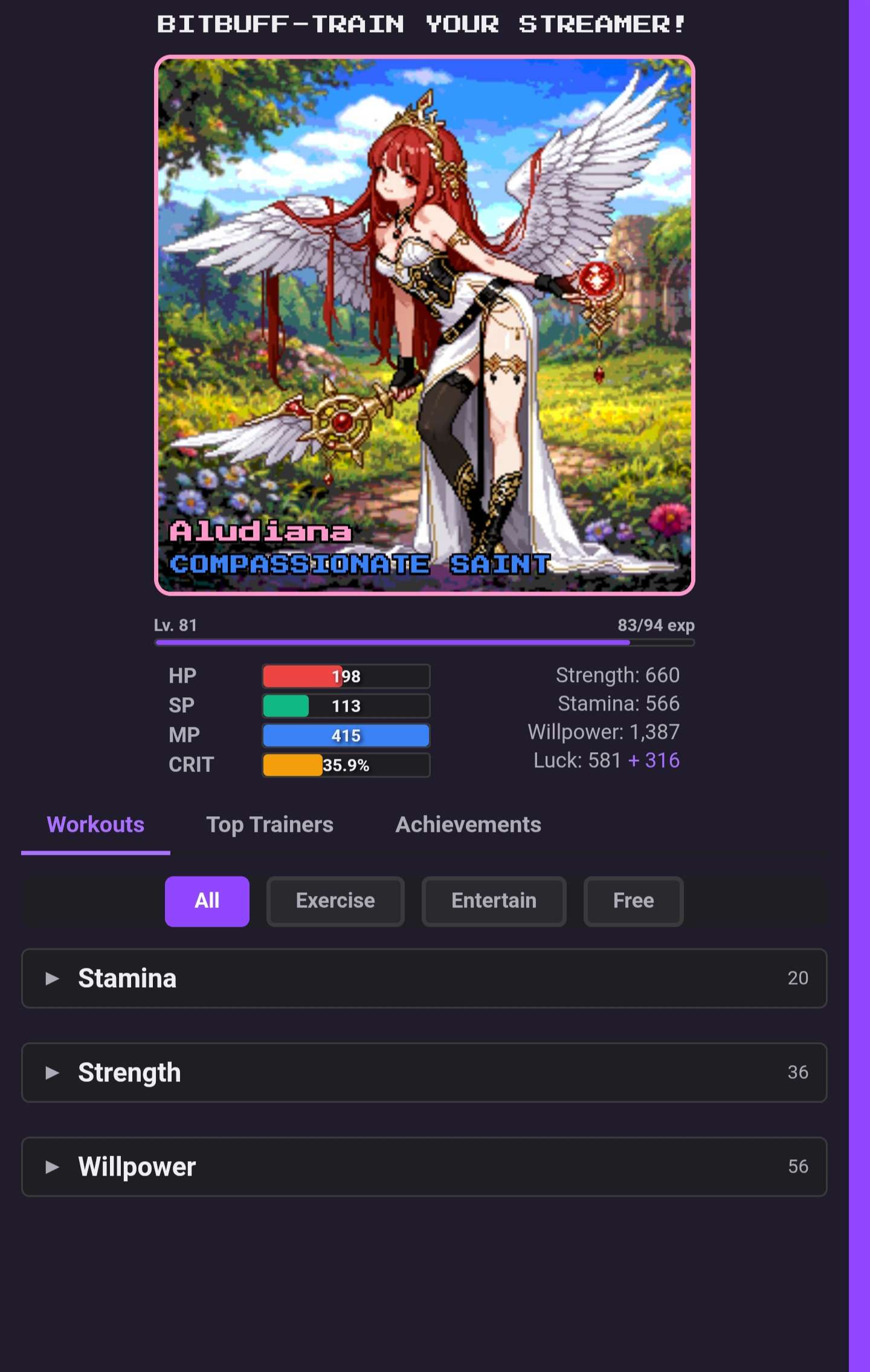
Track streamer progress in a mobile-optimized panel view.
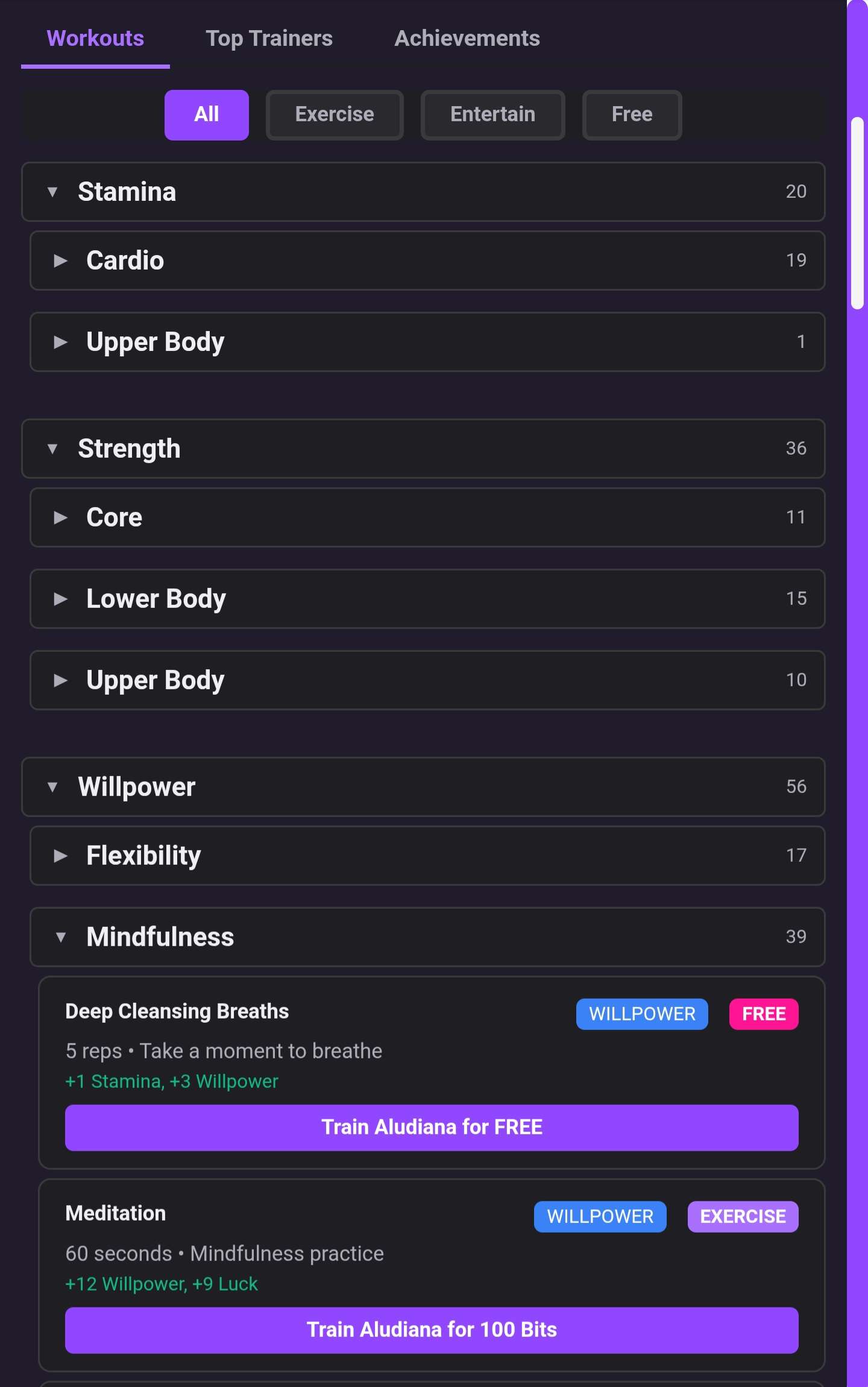
Use filters and dropdowns to quickly find and add training to the queue.
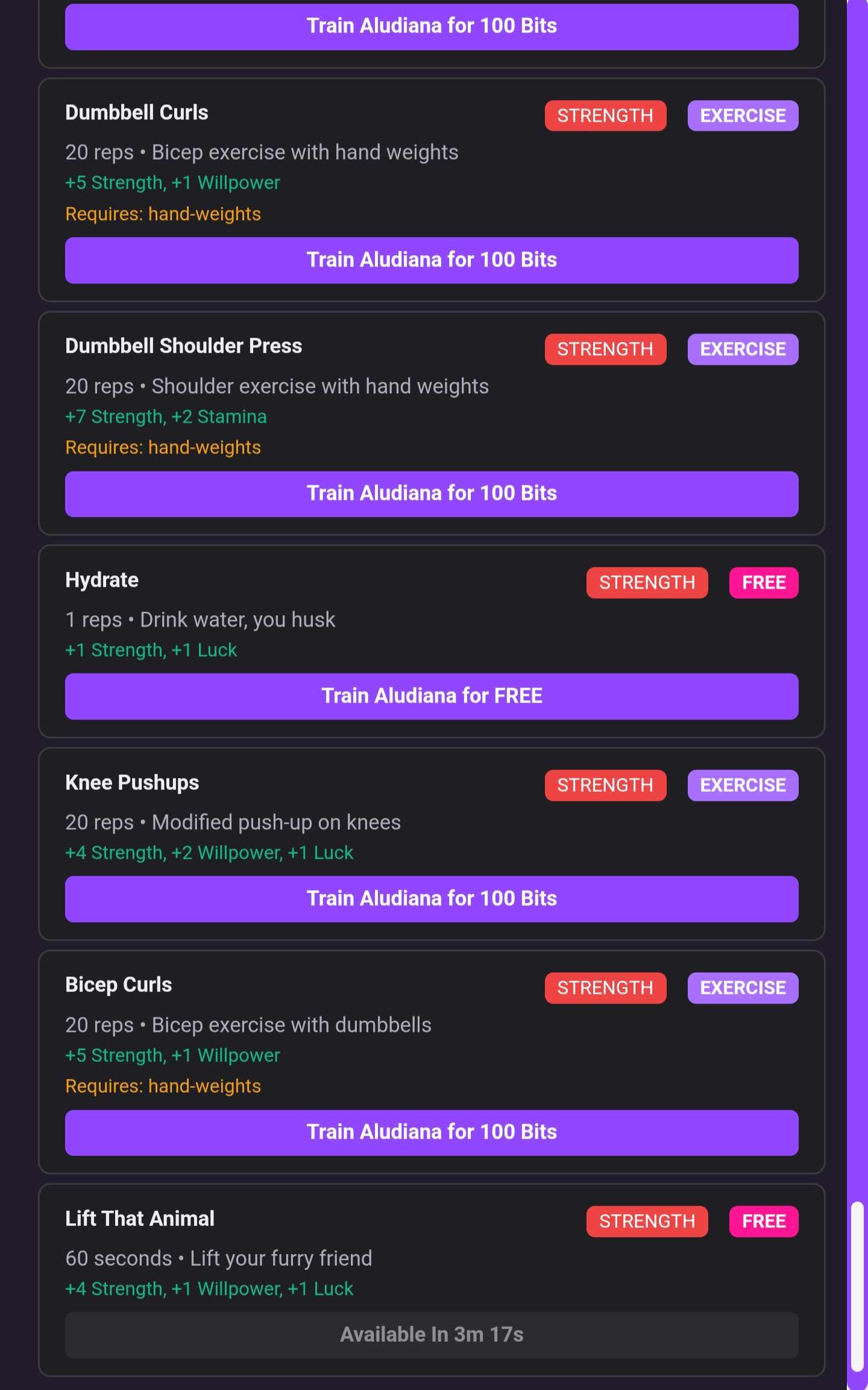
Training ranges from serious to silly. Smart cooldowns are assigned prevent abuse, like watering plants once per stream (8-hour cooldown).
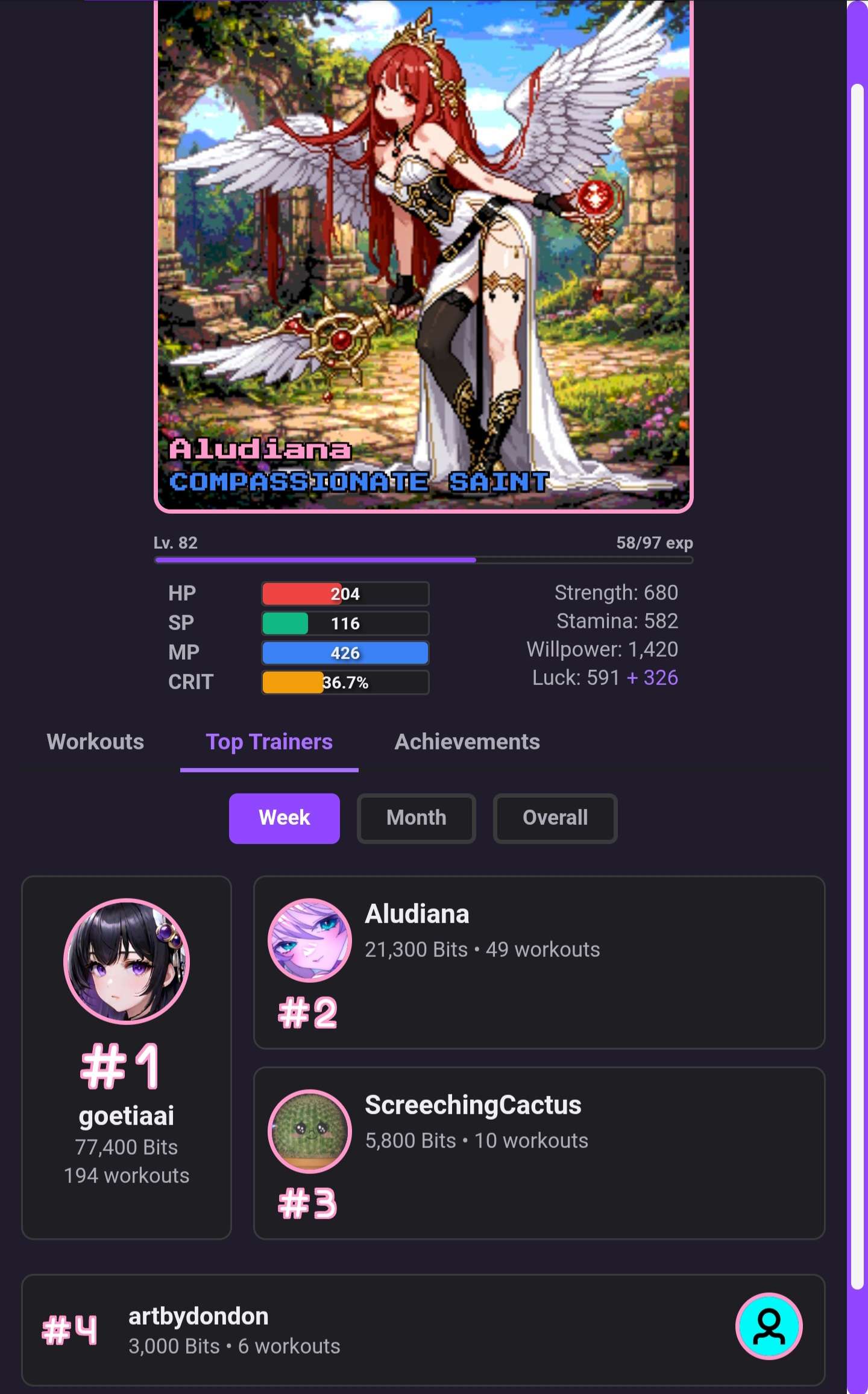
Viewers battle it out on the leaderboard to become a top trainer.
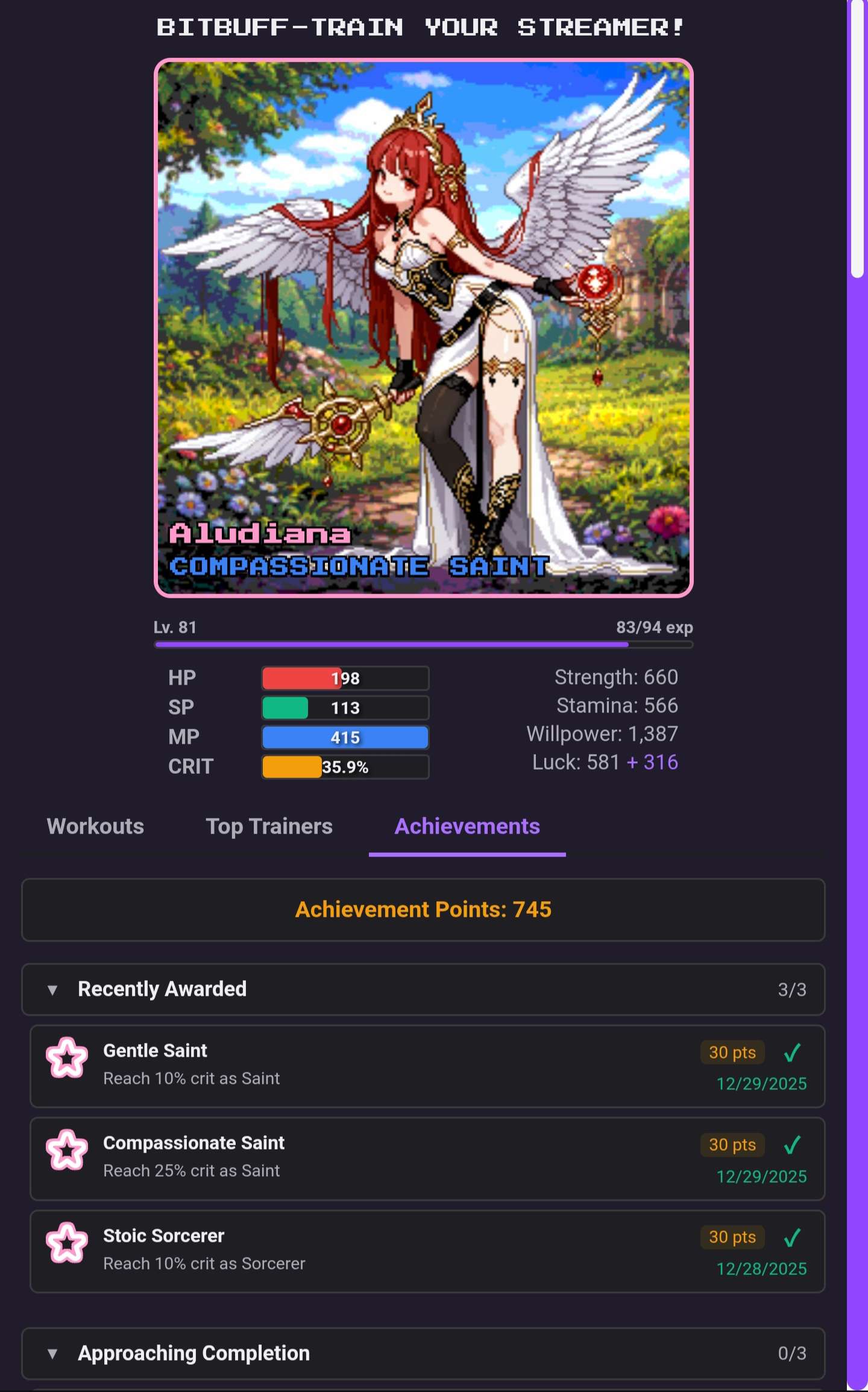
Achievements help you track your progress and earn rewards.
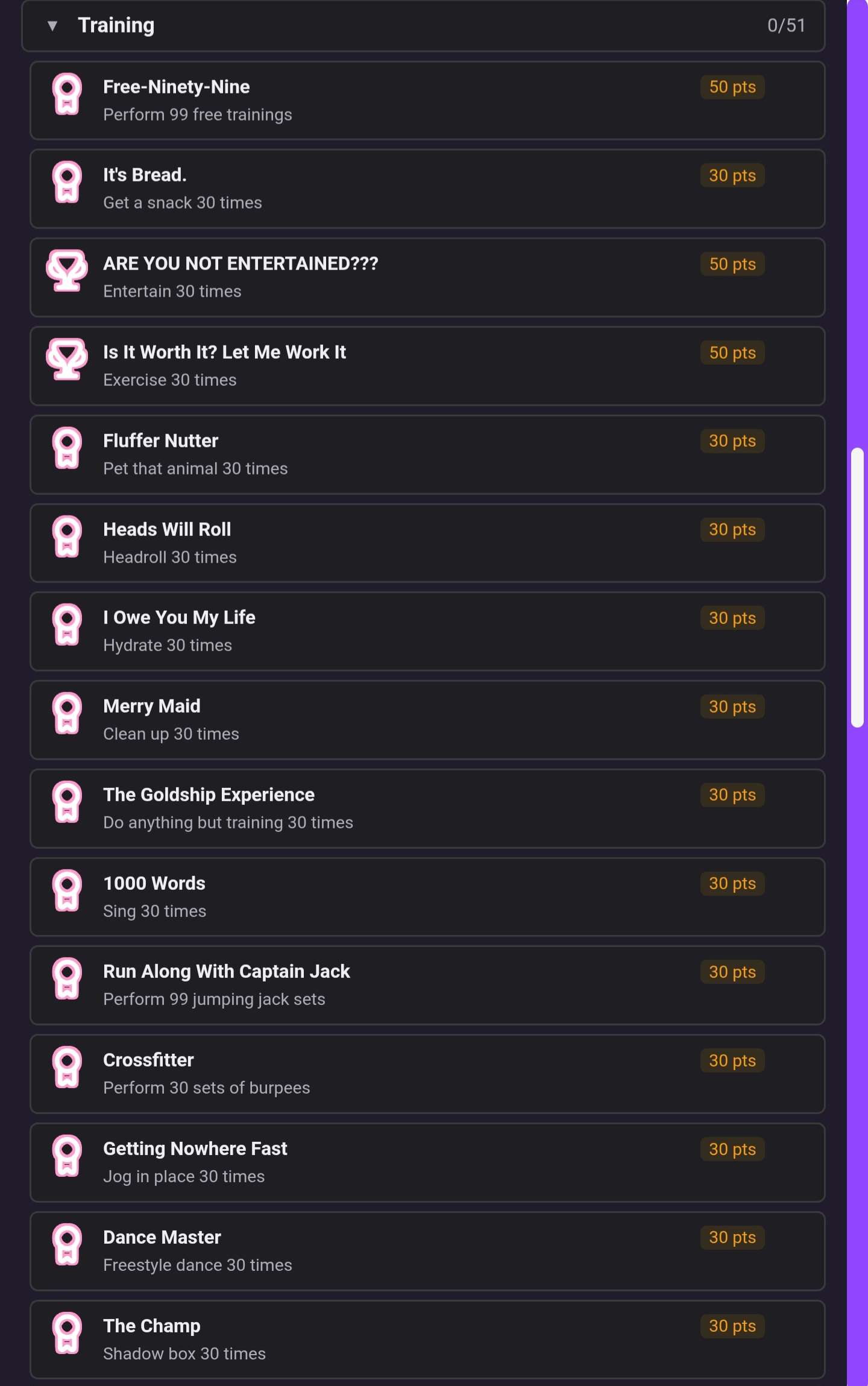
There are a TON of achievements to unlock, so keep training!
Streamer (Web) View
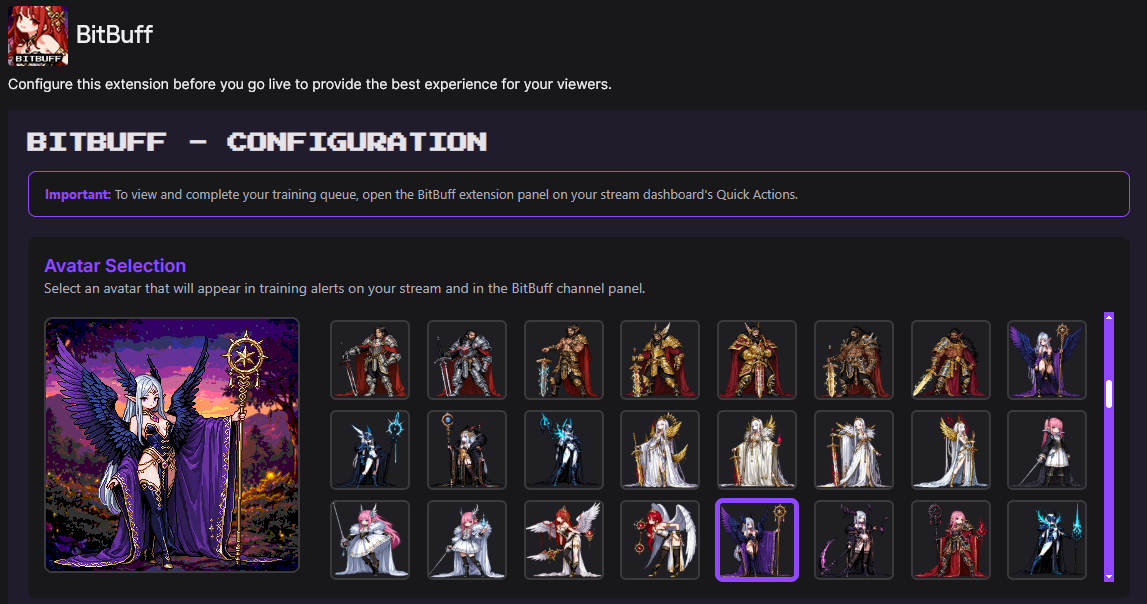
Choose from over 200 avatars to represent you. Backgrounds are selected at random for even more variety.
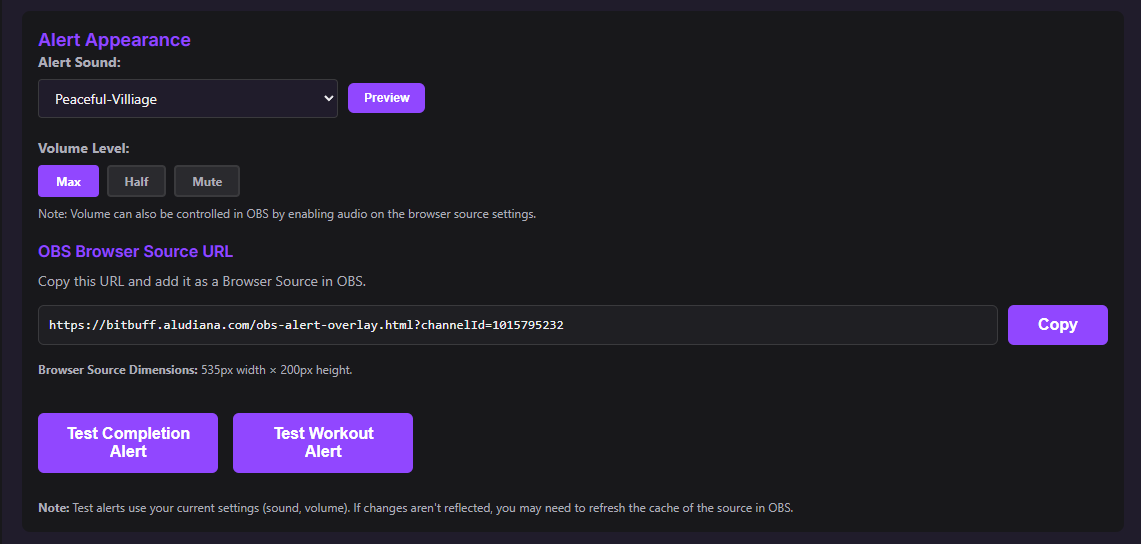
Two clicks set up your OBS browser source alert. Copy the URL and add it to OBS.
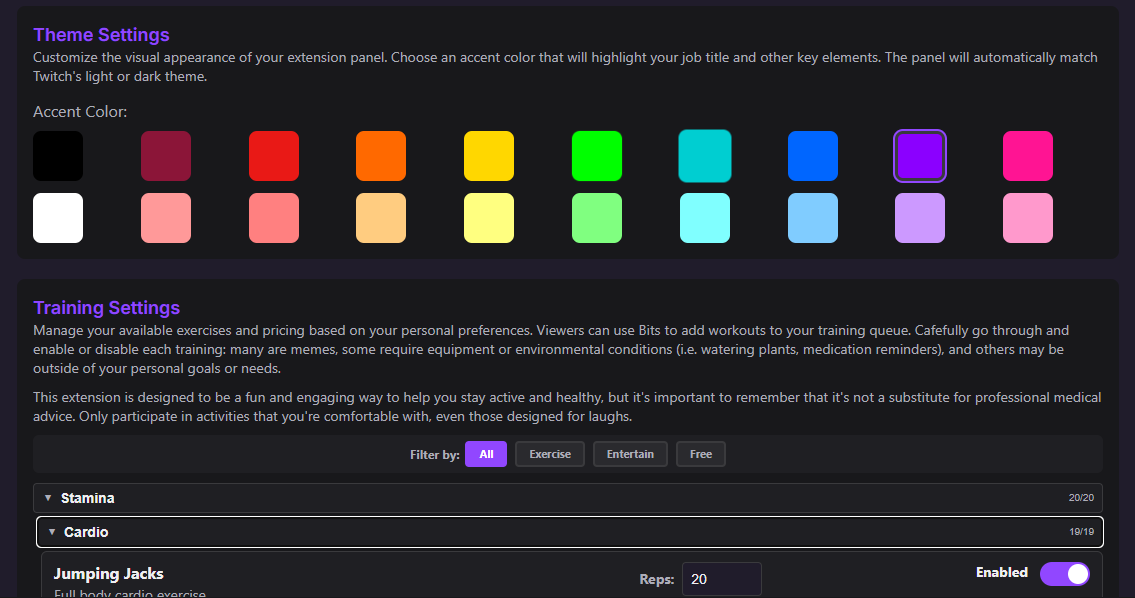
20 accent colors add even more personality. 100+ trainings can be toggled on/off and customized for your goals.
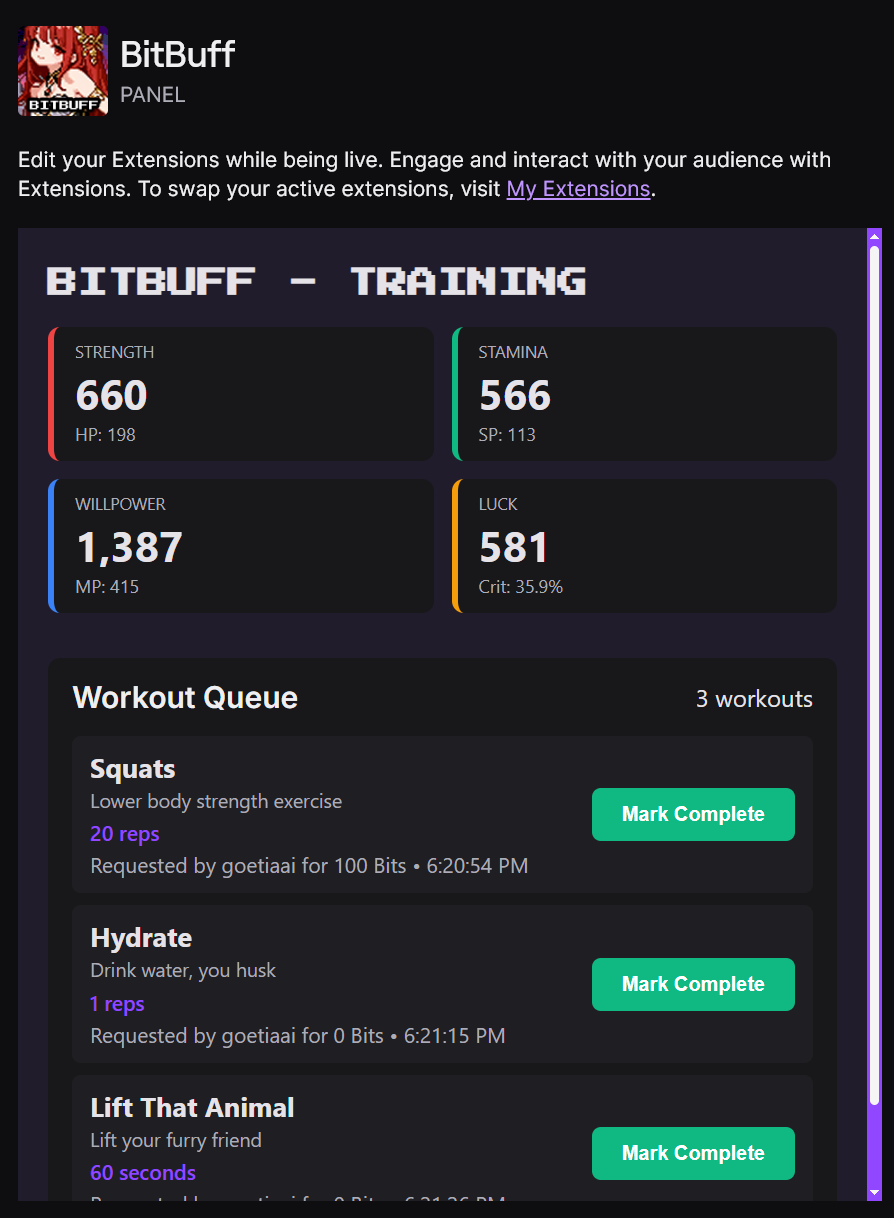
Complete training in Quick Actions on Creator Dashboard (you must be in the Twitch Dashboard Stream Manager) to trigger the completion alert and receive your stat gains.
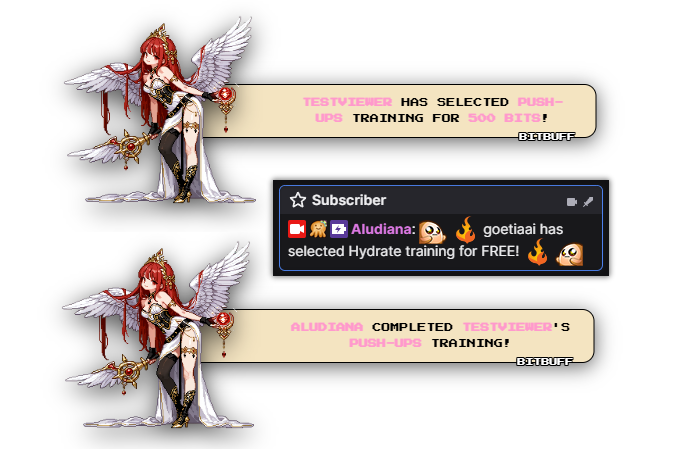
OBS browser source and chat alerts give recognition to your dedicated training team. Complete training as it comes in, or let a few stack up for a longer gaming break!
Perfect for Every Community
BitBuff isn't necessarily for serious fitness content. It's designed to be fun and flexible for any streamer looking to add truly interactive engagement to their broadcast:
- All Streamers: Create a new style of stream interaction that can potentially generate regular revenue (for monetized channels)
- New/Small Streamers: Use the free trainings and variety of options to generate endless content and help grab viewers' attention
- Gaming: Give your hands a break and challenge chat to punish poor performance
- Just Chatting: Let your viewers change up content with community-driven activities
- Variety: Mix fitness challenges into your content rotation for unique viewer interactions
- Fitness: Gamify your fitness journey in a fresh way and make working out a community experience
- Creative/Spicy: Use training as another creative outlet to directly interact with viewers and delight your dedicated supporters
Training options are largely desk-friendly and customizable, so you can set types of exercises and rep counts that work for your stream style. Whether you want serious training or lighthearted fun, BitBuff adapts to your needs and community.
Changelog
Version 1.0.1
- Refined OBS browser source alert system for improved performance and reliability
- Optimized alert dimensions and positioning for better integration with OBS scenes
- Enhanced data management with user-activated data deletion feature
- Improved overall extension stability and error handling
Version 1.0.0
- Initial release of BitBuff
- Exercise system with 100+ desk-friendly training options
- Stat system: Strength, Stamina, Willpower, and Luck
- Attribute conversion: HP, SP, MP, and Crit Rate
- Experience and Leveling system with visual progress bar
- Job/Title progression system from Novice to advanced classes
- Workout queue with persistent storage
- Leaderboards: Weekly, Monthly, and All-Time
- Achievement system with unlockable achievements
- Customization: Avatars, accent colors, theme colors
- Stream alerts with RPG-style OBS browser source animations
- Chat integration with automatic training announcements
- Balanced free and paid options for training, including a range of cooldowns to prevent abuse
- Mobile-optimized panel view with fun-optimized settings for your channel
FAQ & Setup Guide
Getting Started
Who made this thing?
BitBuff was written, designed, and created by Aludiana, a former Twitch and Blizzard employee, streaming on Twitch since 2012. I hope this extension brings joy, memes, and endless entertainment to you and your community! 💜
A human did all the creative work (even writing this FAQ). All components were manually wireframed and styled. Systems, workouts, achievements, etc. were directly designed through manual lists and specs. A robot overlord only wrote the code to make it all work and helped expedite the process. (I can't do EVERYTHING, y'all.)
The avatar packs used in the extension were created by BKX1, used under commercial license.
Music in the extension is by HydroGene, used under CC0.
How do I install BitBuff?
BitBuff is a Twitch Extension. To install it:
- Go to your Twitch channel's Extensions Manager
- Search for "BitBuff" in the Extension Store
- Click "Install" and follow the setup prompts
- Customize your configuration to your liking
- Activate the extension on your channel by adding it to a channel panel
- Open the BitBuff panel in Quick Actions on Creator Dashboard to manage your queue
How do I configure BitBuff for my stream?
After installation, open the BitBuff configuration page (accessible from your Extensions Manager or Dashboard):
Important: To complete workouts and manage your queue, you'll need to access the BitBuff panel in Quick Actions on Creator Dashboard (available in the Twitch Dashboard Stream Manager).
- Select an Avatar: Choose from available avatars that will appear in alerts and your panel
- OBS Browser Source: Copy the browser source URL and add it to OBS. Position the browser source anywhere in your OBS scene.
- Authorize OAuth: Click "Authorize with Twitch" to enable chat messages and proper username tracking
- Customize Theme: Select an accent color that matches your channel branding
- Configure Exercises: Enable/disable exercises and set custom rep counts for each one
- Save Settings: Click "Save Settings" to apply your configuration
How do viewers add workouts?
Viewers can add workouts to your training queue through the extension panel. The system supports various interaction options:
- Viewers can select from over 100 different training options
- Each "exercise" is customized by the streamer with rep counts and settings in the config page
- When training is selected, it's automatically placed in your workout queue
- An automatic chat message calls out the trainer and selected training
- The queue persists across streams, so incomplete workouts will wait for you
How can I encourage chat to use BitBuff?
There are many creative ways to integrate BitBuff into your stream and encourage viewer participation:
- Disable any similar Channel Points redeems and tell chat they've moved to the extension
- Set challenges for chat to "punish" poor gameplay, like workouts for raid wipes
- Enable workouts according to your content, like wrist stretches for artists, and encourage chat to remind you to do them via BitBuff redeems
- Create themed workout days (e.g., "Leg Day Friday" or "Core Challenge Monday") and let chat choose the exercises
- Use BitBuff as a reward system for viewer milestones or subscriber goals
- Incorporate workouts into your stream schedule breaks, letting chat decide what you do during intermissions
- Set up friendly competition by tracking who sends the most workouts and feature top trainers
- Link workouts to your game content (e.g., do push-ups for each death in a difficult game)
Features Explained
How does the Training System work?
BitBuff includes over 100 desk-friendly training options organized into three classes:
- Exercise: Traditional fitness exercises (jog-in-place, jumping jacks, push-ups, squats, planks, etc.)
- Entertain: Fun, engaging activities that still provide stat gains (pet interactions, hydrate/caffeinate/toast, dance, act, crash out, etc.)
- Free: Training options available for all viewers to add (and are ONLY ever free)
Each exercise has:
- A default rep/time count that you can customize in the config
- Stat gains that boost your Strength, Stamina, Willpower, and/or Luck
- An optional equipment requirement where noted (like resistance bands or hand weights)
- Bits and on/off settings that you control in the configuration page
- A built-in cooldown that makes sense for the exercise (like watering plants once per stream [8-hour cooldown], hydrate/caffeinate with a reasonable cooldown to prevent abuse [10-minute cooldown], etc.)
You can enable or disable any exercise at any time, and set custom rep counts to do things the way you want. With over 100 options, there's something for everyone!
What are Stats and Attributes?
BitBuff uses a dual-stat system:
- Stats: Strength, Stamina, Willpower, and Luck - these are the base values that increase when you complete exercises
- Attributes: HP (Health Points), SP (Skill Points), MP (Magic Points), and Crit Rate - these are derived from your stats
Conversion Formula:
- HP: Every 5 Strength = +1 HP, plus every 10 Strength = +1 additional HP
- SP: Every 5 Stamina = +1 SP
- MP: Every 5 Willpower = +1 MP, plus every 10 Willpower = +1 additional MP
- Crit Rate: 2.5 Luck = 0.1% crit rate (includes bonus luck from stat milestones)
- Luck Bonus (appears in purple): +1 per 10 Strength, +2 per 10 Stamina, +1 per 10 Willpower
Attribute bars scale dynamically - when one bar reaches 100% fill, all bars scale proportionally. They may shift dramatically based on your stat gains over time.
How does the Experience and Leveling System work?
BitBuff features a comprehensive leveling system with a compact, clean interface that tracks your overall training progress:
- Experience Gain: You gain experience equal to the stat points you earn from completing workouts. Experience comes from base stat gains (Luck bonus points don't count toward experience)
- Level Progression: As you accumulate experience, you'll level up. Each level requires progressively more experience, but the system uses a gradual growth curve so higher levels remain achievable even for free-redeem-heavy channels
- Experience Bar: The extension panel displays your current level, current experience points, and experience needed for the next level with a visual progress bar
- Level Display: Your level is prominently shown in the panel (e.g., "Lv. 15") along with your experience progress (e.g., "42/58 exp")
The leveling system provides a long-term progression goal separate from your stats and job system. Early levels come quickly while viewers begin to discover BitBuff, and later levels require more dedication, making each level-up feel rewarding. Your level represents your overall training commitment and serves as a milestone marker for your fitness journey.
Note: The exact experience requirements per level use a polynomial growth formula designed to provide sustainable, gradual progression rather than exponential scaling that would make higher levels nearly impossible to reach. The extension is designed to be a long-term novelty for viewers, so the leveling system is designed to be a direct reflection of progress and dedication to improving yourself over time.
How does the Workout Queue work?
When viewers add workouts, they're placed in your workout queue. The queue:
- Persists across streams (unfinished workouts don't disappear when you go offline)
- Shows exercise name, viewer username, and timestamp
- Can be viewed in Quick Actions on Creator Dashboard (streamer-only view)
- Allows you to mark workouts as complete when you finish them
- Automatically applies stat gains when you mark a workout complete
- Each completed workout contributes experience toward your next level
- Use the "Pause Redemptions" toggle in config whenever you need a break from training, or if too many workouts start rolling in
To view and complete workouts, open the BitBuff panel in Quick Actions on Creator Dashboard. When you mark a workout as complete, you'll see your stats increase, your experience bar fill, and potentially level up if you've gained enough experience!
An alert will play when a workout is queued and when you mark a workout as complete.
What are Leaderboards?
Leaderboards track the top contributors to your training sessions:
- Weekly: Top viewers for the current week
- Monthly: Top viewers for the current month
- All-Time: Top viewers across all time
Rankings are based on community participation with Bits. Viewers can see their rank and compete to be at the top of the leaderboard.
What are Achievements?
Achievements are unlockable milestones that reward you for various accomplishments. Examples include:
- Training every stat in a single stream
- Reaching specific HP, SP, or MP thresholds
- Hitting stat milestones (100, 500, 1000+ in any stat)
- Unlocking new or advancing your current job
- Performing workouts a certain number of times
- And many more challenges
Each completion awards Achievement Points and can be viewed in the extension panel. Achievements are automatically unlocked when you meet their requirements. Any previous, lower rank achievements will be unlocked should your job change deep into BitBuff progression.
How do Stream Alerts work?
When a viewer adds a workout to your queue, a full-screen alert immediately appears in your OBS browser source:
- RPG-style chat bubble design with your selected avatar
- Shows exercise name and viewer username
- Uses your selected accent color for highlighting
- Displays for 8 seconds
- Alerts appear in your OBS browser source overlay
- Position the browser source anywhere in your OBS scene
- Plays selected sound effect when the alert appears
- Another alert plays when you complete a workout, helping viewers keep track of your progress--especially with a longer queue to work through
Note: Alerts appear in your OBS browser source, which you add to your OBS scene. This ensures alerts appear in both your live stream and VODs. Simply copy the browser source URL from the config page and add it as a browser source in OBS.
Customization Options
How do I customize my avatar?
In the configuration page, you can select from available avatars. Your selected avatar appears:
- In workout alerts in the OBS browser source
- In the extension panel next to your stats
- A random background will be selected and placed behind the avatar on the panel
Note: Custom avatar uploads are not currently available, but may be included in a future update.
How do I change my accent color?
The accent color is used to highlight your job title and other key elements throughout the extension. In the configuration page, you can select from a palette of colors that match your channel branding. The accent color affects:
- Job title text color
- Active tab indicators
- Selected exercise highlights
- Alert bubble accents
How do I position alerts in OBS?
Alerts appear in your OBS browser source. Simply add the browser source URL to OBS and position it anywhere in your scene. The alert is centered within the browser source element, so you can place it at any corner, edge, or center position in your OBS scene as needed.
You can use the "Test Completion/Workout Alert" buttons to see how the alerts look before going live.
How do I select alert sounds?
In the configuration page, you can customize the sound that plays when alerts are triggered. The alert sound selector allows you to:
- Choose from a variety of RPG-themed sound effects
- Adjust the volume level
- Disable sounds entirely by selecting "No Sound" or setting volume to Mute
Important: To hear alert sounds in OBS, make sure to enable the "Control audio via OBS" checkbox on the BitBuff browser source in OBS.
When multiple alerts are triggered, they will queue up and play one at a time, ensuring sounds don't overlap. The alert will display for 5 seconds while the sound plays, and the next alert will wait until both the visual alert and sound have finished.
You can use the "Test Completion/Workout Alert" buttons to preview how the alerts sound before saving.
How do I customize exercises?
In the configuration page's Training Settings section:
- Enable/Disable: Toggle exercises on or off using the switch next to each exercise
- Set Reps: Enter a custom rep count for each exercise (defaults are provided)
- Bits Settings: Adjust Bits for each exercise to match your preferences
- Filter: Use the filter buttons to view exercises by class (Exercise, Entertain, Free, or All)
Remember to click "Save Settings" after making changes.
The Job System
BitBuff features a comprehensive job/title system that evolves as you progress. Your job title is determined by your attribute values (HP, SP, MP) and can gain powerful modifiers based on your crit rate.
How do I progress through jobs?
Jobs are determined by your highest attribute value and which stat is your primary focus:
Novice (Starting Job)
Your starting job when all attributes are below 15.
Adventurer (15+ Attributes)
Unlocked when any attribute reaches 15.
Tier 1 Jobs (20+ Attributes)
Unlocked when your highest attribute reaches 20. The job depends on which stat is highest:
- Fighter: Highest HP (Strength-based)
- Ranger: Highest SP (Stamina-based)
- Mage: Highest MP (Willpower-based)
Tier 2 Jobs (30+ Attributes)
Unlocked when your highest attribute reaches 30:
- Warrior: Highest HP (Strength-based)
- Mercenary: Highest SP (Stamina-based)
- Sage: Highest MP (Willpower-based)
Tier 3 Jobs (50+ Attributes)
At 50+ attributes, your job is determined by the ordering of all three attributes (HP, SP, MP). The system checks which attribute is highest, second highest, and third highest:
- Berserker: HP > SP > MP
- Crusader: HP > MP > SP
- Assassin: SP > HP > MP
- Alchemist: SP > MP > HP
- Saint: MP > HP > SP
- Sorcerer: MP > SP > HP
If attributes are tied, the system uses tie-breaking rules to maintain your current job when possible, or defaults to the first matching option.
What are Advanced Job Titles?
Once you reach Tier 3 jobs (50+ attributes), your job title can gain powerful modifiers based on your crit rate. These advanced job titles reflect how deep you are into your current job. Crit rate is calculated from your total Luck (natural + bonus): 2.5 Luck = 0.1% crit rate.
Crit Rate Breakpoints:
- 10% Crit: First tier
- 25% Crit: Second tier
- 50% Crit: Third tier
- 75% Crit: Fourth tier
- 100%+ Crit: Maximum tier
Advanced Titles by Job:
- Berserker: Fledgeling → Hardened → Unbreakable → Unstoppable → Immortal
- Crusader: Brave → Forceful → Vengeful → Unrelenting → Deified
- Assassin: Clever → Cunning → Successful → Prowling → Shadowless
- Alchemist: Diligent → Expert → Master → Illustrious → Infamous
- Saint: Gentle → Compassionate → Reveared → Guardian → Etherial
- Sorcerer: Stoic → Empowered → Emboldened → Emblazened → Catastrophic
Your full job title will appear as something like "Unstoppable Berserker" or "Illustrious Alchemist" when you meet the requirements.
How do I change my job?
Your job automatically updates based on your current attribute values. To change jobs:
- For Tier 1-2: Focus on training the stat that corresponds to your desired job (Strength for Fighter/Warrior, Stamina for Ranger/Mercenary, Willpower for Mage/Sage)
- For Tier 3: Balance your training to achieve the attribute ordering you want. For example, to become a Berserker, you need HP > SP > MP, so prioritize Strength training while maintaining some Stamina and Willpower
- For Advanced Job Titles: Increase your Luck stat through training that grants higher Luck gains (nearly every free exercise grants Luck gains, and many paid exercises grant at least +1 Luck), or reach stat milestones that provide bonus Luck
Your job title updates automatically when you complete workouts that change your attribute ordering or push you past milestone thresholds.
Note: Your level and job are independent systems. Leveling up doesn't directly change your job, but the stat gains that contribute to your level also affect your attributes, which determine your job. This means training for level-ups and job changes go hand-in-hand! View your base level as your overall progress in BitBuff.
What happens if my attributes tie?
The job system has intelligent tie-breaking:
- If your current job matches one of the valid options for your attribute ordering, you keep your current job
- If multiple jobs are valid and your current job isn't one of them, the system selects the first matching option based on your highest attribute
- This prevents your job from changing unnecessarily when attributes are close in value
Technical Questions
Do I need OAuth authorization?
OAuth authorization is required for:
- Sending automatic chat messages when workouts are added
- Proper username tracking for leaderboards
- Full functionality of the extension
Click "Authorize with Twitch" in the configuration page and follow the prompts. You'll be redirected to Twitch to log in and authorize, then redirected back to the config page.
Where can I view my workout queue?
The workout queue is visible in Quick Actions on Creator Dashboard, which is a streamer-only view. The Quick Actions panel shows all pending workouts and allows you to mark them as complete.
Do workouts persist between streams?
Yes! Your workout queue persists across streams. If viewers add too many trainings, or you're saving them up for a focused stream, they'll be waiting for you when you start your next stream. Workouts are only removed when you mark them as complete.
Can I use BitBuff on mobile?
Yes! BitBuff includes a mobile-optimized panel view that works on phones and tablets. Viewers can browse exercises, add workouts, and view leaderboards from mobile devices.
To view Extensions on mobile, viewers should navigate to your Chat tab or your stream view when live. There will be Extension icon buttons at the top of the Chat box on both Android and iOS.
Extension panels do not display in your channel info panels (About page) on mobile. If viewers say they can't find the panel, ask if they're on mobile, then direct them to the almost-hidden BitBuff icon above the Chat box.
How can I delete all my data?
You can delete all your extension data at any time using the "Delete My Data" button at the bottom of the BitBuff configuration page. This action is permanent and irreversible.
When you delete your data, the following will be permanently removed:
- All your accumulated stats (Strength, Stamina, Willpower, Luck)
- Your calculated attributes (HP, SP, MP, Crit Rate)
- Your current job/class
- All your custom settings (enabled exercises, reps, theme, accent color, avatar, alert sound, volume)
- Your entire workout queue
- All your earned achievements
- Your OAuth tokens for chat integration
Your username and Bits contributions may remain in anonymized form on public leaderboards for historical accuracy, but will no longer be linked to your account.
Important: We strongly discourage using data deletion as a way to reset your stats. This will also remove your leaderboard entries, and you'll lose all your progress, achievements, and customization settings. Data deletion should only be used if you truly want to permanently remove all your data from the extension.